Most Cloud PCs aren't sized right first time, and they tend to drift in both directions. Some are too small, so they feel sluggish for the person using them. Others carry more than the work needs. It's the most common pattern I see in client estates: without a clear view of what each person uses, you pick a size at setup and rarely revisit it.
One of the advanced capabilities in Microsoft Intune, Microsoft Intune Advanced Analytics, takes the guesswork out. It shows you, Cloud PC by Cloud PC, which machines are short on power, and which are carrying more than the work needs. So you can right-size in both directions: give the struggling ones more so people get a responsive desktop and trim the ones running with room to spare. Until now that capability was a paid add-on.
From 2026 it's included in the Microsoft 365 plans most companies already pay for, and so is the rest of the Microsoft Intune Suite. That is the real story behind Microsoft's 2026 packaging update. And because Windows 365 Cloud PCs are managed in the same console as your laptops, your Cloud PCs are where you'll feel it first. In this article I'll show you what you get, and what you'd do with each piece.
The three pieces, in plain terms
Quick definitions, because the names run together.
Windows 365 gives each person a Cloud PC: a full Windows desktop that runs in Microsoft's cloud and streams to whatever device they pick up, from a work laptop to a personal tablet. (You'll also see Windows 365 Flex, called Frontline until May 2026, for shift and part-time staff who share access, and Windows 365 Link, a small box that boots straight into a Cloud PC.)
Microsoft Intune is the admin console you use to set up, secure, and manage all of those devices, physical and cloud alike.
The Intune Suite is the set of premium tools you used to buy as a separate add-on. That's the part that just changed.
The thing to hold onto: Intune treats a Cloud PC exactly like a physical Windows PC. Same policies, same security rules, same tools. So everything below applies to your Cloud PCs and your laptops without you doing the work twice.
What changed in 2026
In December 2025 Microsoft announced a price and packaging update for its Microsoft 365 business plans, and the detail has firmed up since. The headline most people saw was the price. Both plans go up on 1 July 2026: Microsoft 365 E3 from $36 to $39 per user per month, and Microsoft 365 E5 from $57 to $60.
The bigger story is what you get for it. Tools that were locked behind the paid Intune Suite are now part of the plans you probably already hold:
- Microsoft 365 E3 (or EMS E3): you get three of the tools: Microsoft Intune Remote Help, Microsoft Intune Advanced Analytics, and Microsoft Intune Plan 2.
- Microsoft 365 E5: you get all of that, plus Microsoft Intune Endpoint Privilege Management, Microsoft Intune Enterprise App Management, and Microsoft Cloud PKI. That's the full Intune Suite, not a subset.
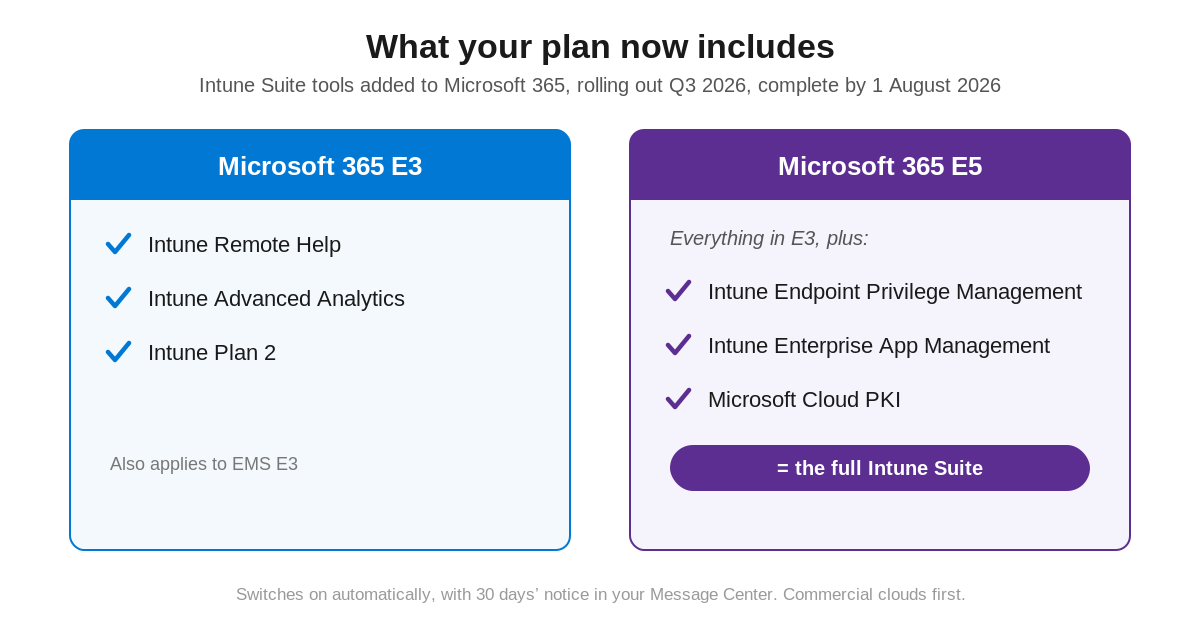
You don't have to buy anything or raise a request. It switches on by itself between Q3 2026 and 1 August 2026, and you'll get 30 days' notice in your Message Center before it reaches your tenant. If you're not on E3 or E5, the Intune Suite is still sold on its own, so these tools are still within reach.
What you'd actually do with it
This is the part that matters. Here are the tools you're now getting, each with a real job it does for your Cloud PCs.
Right-size your Cloud PCs with data, not guesswork (Advanced Analytics). I led with this one because the savings are the easiest to see. Move a user who never touches the headroom from a 4 vCPU / 16 GB Cloud PC down to a 2 vCPU / 8 GB one and you cut that seat's monthly cost, because a Cloud PC is billed by its size. It works the other way too, flagging the under-powered machines so you can fix them before the user even raises a ticket.
Give one-off admin rights instead of handing over the keys (Endpoint Privilege Management). A contractor needs to install a tool on their Cloud PC. Your old choices were to make them a local admin, after which they can install anything, or to make them wait on a ticket. With Endpoint Privilege Management you approve that one install, once, it's recorded, and nobody is left with standing admin rights on a desktop that might be touching sensitive data.
See and fix a user's screen wherever they are (Remote Help). Someone on a shared Flex Cloud PC can't get printing working. You open a Remote Help session, see their screen, take control with their permission, and sort it, the same supported, audited way your help desk already fixes laptops.
Get certificates onto Cloud PCs without running a certificate server (Cloud PKI). Wi-Fi, VPN, and app sign-in often need certificates, and the old answer was running your own certificate server on-site. Cloud PKI issues and manages them from the cloud instead, which suits Cloud PCs because they already live there.
Push the right apps and keep them current (Enterprise App Management). Rather than packaging common business apps and chasing their updates yourself, you pick them from a catalogue, deploy them, and let Intune keep them patched, across your Cloud PCs and laptops at once.
Your security rules apply on their own. The compliance rules you already run, such as must be encrypted, must be patched, block sign-in from risky locations, apply to a Cloud PC the moment it's created, because Intune sees it as another Windows device. There's no second rulebook to write for the cloud, and no window where a new Cloud PC sits unprotected while you remember to cover it.
Putting it together
Say you bring on a contractor for a three-month project. You give them a Windows 365 Enterprise Cloud PC, and your standard compliance and Conditional Access rules apply to it from the start, so it's encrypted and limited to approved sign-ins on day one. Cloud PKI pushes the certificate they need for the VPN, so they're connected without you running a certificate server. A few weeks in they need a specialist tool installed, and Endpoint Privilege Management lets you approve that single install rather than making them a local admin. When something on the Cloud PC plays up, the help desk fixes it over Remote Help, the same way they would a laptop. When the contract ends, you remove the Cloud PC and the access goes with it. Every one of those steps used a tool that, on Microsoft 365 E5, is now part of the plan you already pay for. On E3, Remote Help is included and the rest is one Intune Suite add-on away.
The honest bits
One of the things I talk to my customers about most is driving as much value as possible from your Microsoft licences. You're paying for these new tools whether you use them or not, so the value only shows up if you turn them on and put them to work. Entitlements you never enable get you nothing.
Government and sovereign clouds get these changes later, once they clear the extra compliance checks, so everything here is the commercial picture. And if you're a smaller organisation, or just not on E3 or E5, these tools aren't out of reach: the Intune Suite is still sold on its own, and it's worth a fresh look at whether that now stacks up better than it used to.
Where to start
When the notice lands in your Message Center, don't treat it as licensing paperwork. Check which plan you're on and what it now includes, turn the tools on, then go for the quick wins first:
- Use Advanced Analytics to right-size your Cloud PCs and claw some money back.
- Switch on Remote Help so the help desk has one way to support everything.
- Use Endpoint Privilege Management to take back the admin rights you've given out over the years.
The shift behind all of this is simple. Your Cloud PCs and your physical devices are now one estate, managed in one place, with the same good tools across both. So let me ask the practical question: which of these tools will you switch on first? Tell me in the comments, I'd like to know where people are starting.